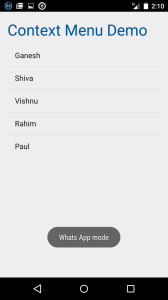
Android Context menu example
Following example shows that how to create context menu application using Android. Follow the below steps to create.
a) copy the following code into activity_main.xml” file
<RelativeLayout xmlns:android="http://schemas.android.com/apk/res/android"
    xmlns:tools="http://schemas.android.com/tools" android:layout_width="match_parent"
    android:layout_height="match_parent" android:paddingLeft="@dimen/activity_horizontal_margin"
    android:paddingRight="@dimen/activity_horizontal_margin"
    android:paddingTop="@dimen/activity_vertical_margin"
    android:paddingBottom="@dimen/activity_vertical_margin" tools:context=".MainActivity">

    <TextView android:text="@string/hello_world" android:layout_width="wrap_content"
        android:layout_height="wrap_content"
        android:id="@+id/textView"
        android:textColor="#005599"
        android:textAlignment="center"
        android:textSize="16pt" />

    <ListView
        android:layout_width="match_parent"
        android:layout_height="wrap_content"
        android:id="@+id/listView1"
        android:layout_alignParentTop="true"
        android:layout_marginTop="53dp"
        android:layout_alignParentLeft="true"
        android:layout_alignParentStart="true" />

</RelativeLayout>

b) Now copy the following code ito "MainActivity.java" file
package app.mitindia.com.contextmenu;

import android.app.Activity;
import android.support.v7.app.ActionBarActivity;
import android.os.Bundle;
import android.view.ContextMenu;
import android.view.Menu;
import android.view.MenuItem;
import android.view.View;
import android.widget.ArrayAdapter;
import android.widget.ListView;
import android.widget.Toast;


public class MainActivity extends Activity {


    ListView listView1;
    String contacts[] = {"Ganesh", "Shiva", "Vishnu", "Rahim", "Paul"};

    @Override
    protected void onCreate(Bundle savedInstanceState) {
        super.onCreate(savedInstanceState);
        setContentView(R.layout.activity_main);

        listView1 = (ListView) findViewById(R.id.listView1);
        ArrayAdapter<String> adapter = new ArrayAdapter<String>(this, android.R.layout.simple_list_item_1, contacts);
        listView1.setAdapter(adapter);
        registerForContextMenu(listView1);

    }

    public void onCreateContextMenu(ContextMenu menu, View v, ContextMenu.ContextMenuInfo menuInfo) {
        super.onCreateContextMenu(menu, v, menuInfo);
        menu.setHeaderTitle("Select the action");
        menu.add(0, v.getId(), 0, "Call");
        menu.add(0, v.getId(), 0, "SMS");
        menu.add(0, v.getId(), 0, "WhatsApp");
    }

    @Override
    public boolean onContextItemSelected(MenuItem item) {
        if (item.getTitle() == "Call") {
            Toast.makeText(getApplicationContext(), "Calling mode", Toast.LENGTH_LONG).show();

        } else if (item.getTitle() == "SMS") {
            Toast.makeText(getApplicationContext(), "Messaging mode", Toast.LENGTH_LONG).show();
        } else if (item.getTitle() == "WhatsApp") {
            Toast.makeText(getApplicationContext(), "Whats App mode", Toast.LENGTH_LONG).show();
        } else {
            return false;
        }
        return true;
    }


    @Override
    public boolean onCreateOptionsMenu(Menu menu) {
        // Inflate the menu; this adds items to the action bar if it is present.
        getMenuInflater().inflate(R.menu.menu_main, menu);
        return true;
    }

    @Override
    public boolean onOptionsItemSelected(MenuItem item) {
        // Handle action bar item clicks here. The action bar will
        // automatically handle clicks on the Home/Up button, so long
        // as you specify a parent activity in AndroidManifest.xml.
        int id = item.getItemId();

        //noinspection SimplifiableIfStatement
        if (id == R.id.action_settings) {
            return true;
        }

        return super.onOptionsItemSelected(item);
    }
}
c) Run the application see the following output.